
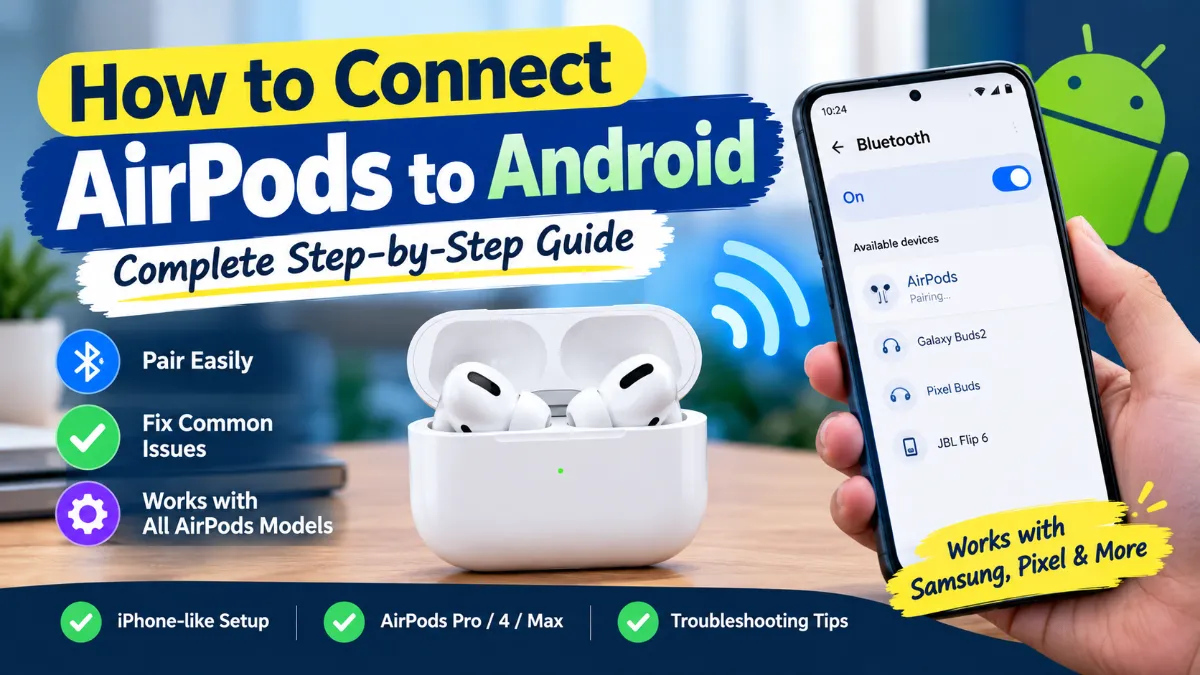
Yes, you can connect AirPods to an Android phone.
AirPods are designed by Apple, but they also work with Android devices as standard Bluetooth headphones. You can use them to listen to music, watch videos, make calls, and use them with most apps that support Bluetooth audio.
The process is also easier than many people expect. You don’t need an iPhone, an Apple ID, or a special Android app just to pair your AirPods.
The main thing to understand is that AirPods don’t provide the same experience on Android that they do on Apple devices. Basic Bluetooth audio and microphone functions work, but some Apple-specific features are not available or may require third-party apps or workarounds.
In this guide, you’ll learn how to connect AirPods to Android, how to put different AirPods models into pairing mode, what to do when AirPods don’t appear in Bluetooth settings, and which features you can and can’t use after connecting them.
Can You Connect AirPods to Android?
Yes.
AirPods can be used as Bluetooth headphones with Android phones and tablets. Google has an official Android guide specifically explaining how to connect AirPods to an Android device. Apple also confirms that AirPods can be paired with non-Apple devices as Bluetooth headsets.
The basic process is:
- Turn on Bluetooth on your Android phone.
- Put your AirPods into pairing mode.
- Open the Bluetooth settings on Android.
- Find your AirPods in the list of available devices.
- Tap the AirPods name.
- Wait for the connection to complete.
That’s it.
You don’t need to download an app simply to make the initial Bluetooth connection.
What You Need Before Connecting AirPods to Android
Before you start, make sure you have a few basic things ready.
1. A charged AirPods case
Apple and Google both recommend making sure your AirPods case has enough charge before pairing.
If the case battery is completely dead, the AirPods may not enter pairing mode correctly.
2. Your AirPods
Keep both AirPods inside the charging case when you start the pairing process.
3. An Android phone or tablet
The exact names of Bluetooth menus can vary between manufacturers.
For example, a Samsung Galaxy phone may use different wording from a Google Pixel, Motorola, OnePlus, or Xiaomi device.
The basic Bluetooth process is still very similar.
4. Bluetooth turned on
Your Android phone needs Bluetooth enabled before it can find the AirPods.
How to Connect AirPods to Android Step by Step
The following method works for most AirPods models.
Step 1: Open Bluetooth Settings on Android
Start by opening the Settings app on your Android phone.
Look for Bluetooth.
Depending on your phone, you may find it under:
- Connected devices
- Connections
- Connected devices and sharing
- Connection preferences
- Bluetooth
You can also swipe down from the top of the screen and press and hold the Bluetooth icon to open Bluetooth settings on many Android phones.
Google’s current Android instructions use Settings > Bluetooth or the Bluetooth control in Quick Settings, although menu names can vary by manufacturer.
Turn Bluetooth on if it isn’t already enabled.
Step 2: Put Your AirPods in the Case
Place both AirPods inside their charging case.
Keep the lid open.
This is important because the AirPods need to enter pairing mode before Android can find them.
Step 3: Put AirPods Into Pairing Mode
This is the step that causes the most confusion because different AirPods models use different controls.
AirPods 1, 2, and 3
Open the AirPods charging case with the earbuds inside.
Press and hold the setup button on the back of the case for about five seconds.
The status light should begin flashing white.
That means the AirPods are ready to pair.
AirPods Pro 1 and AirPods Pro 2
The process is similar.
Put both earbuds in the case, open the lid, and press and hold the setup button on the back until the status light flashes white.
AirPods 4
AirPods 4 use a different pairing method.
Open the charging case with the AirPods inside and hold the case near your Android phone.
Then double-tap the front of the AirPods case until the status light flashes white.
AirPods Pro 3
The newer AirPods Pro 3 also use the front-of-case double-tap method.
Open the case with the earbuds inside and double-tap the front of the case until the status light flashes white.
AirPods Max
For AirPods Max, press and hold the listening mode button for about five seconds.
Wait until the status light flashes white.
Apple’s current support documentation specifically distinguishes the pairing process between older AirPods models, AirPods 4 and AirPods Pro 3, and AirPods Max.
Step 4: Tap Pair New Device
Return to your Android phone.
In Bluetooth settings, look for an option such as:
Pair new device
Tap it.
Android will begin searching for nearby Bluetooth devices.
Some Android phones automatically refresh the list of available devices. If your phone doesn’t, look for an option such as Refresh or Scan.
Google’s current Bluetooth instructions say that if “Pair new device” isn’t shown, you may need to look under Available devices or refresh the Bluetooth device list.
Step 5: Select Your AirPods
After a few seconds, your AirPods should appear under available Bluetooth devices.
They may appear as:
AirPods
or as the customized name associated with them.
Tap the AirPods name.
Your Android phone should begin pairing.
Step 6: Confirm the Connection
Once pairing is complete, the AirPods should appear under your connected or saved Bluetooth devices.
You can now play music, watch videos, make calls, and use other audio apps through your AirPods.
The first pairing normally only needs to be completed once. After that, your phone can reconnect to the AirPods when Bluetooth is enabled and the earbuds are available. Google notes that Bluetooth devices remain paired until you unpair or forget them.
How to Connect AirPods 4 to Android
If you have AirPods 4, don’t look for a physical setup button on the back of the case.
The pairing process is different.
Follow these steps
- Put both AirPods inside the case.
- Open the case.
- Turn on Bluetooth on your Android phone.
- Open the Bluetooth settings.
- Tap Pair new device.
- Double-tap the front of the AirPods case.
- Wait for the status light to flash white.
- Look for AirPods in the Android Bluetooth list.
- Tap AirPods.
- Wait for the connection to complete.
If the AirPods don’t appear immediately, refresh the available Bluetooth devices list.
Apple’s current instructions specifically use the front-of-case double-tap method for AirPods 4 and AirPods Pro 3.
How to Connect AirPods Pro to Android
AirPods Pro can also connect to Android through Bluetooth.
For AirPods Pro 1 and AirPods Pro 2, place the earbuds in the case, open the lid, and press and hold the setup button on the back until the status light flashes white.
Then:
- Open Android Settings.
- Tap Bluetooth.
- Tap Pair new device.
- Find your AirPods.
- Tap the AirPods name.
- Wait for pairing to finish.
The basic Bluetooth connection works even though you’re using an Android phone.
How to Connect AirPods Max to Android
AirPods Max work differently because they don’t use a charging case with a rear pairing button.
To connect AirPods Max:
- Turn on Bluetooth on your Android device.
- Open Bluetooth settings.
- Tap Pair new device.
- Press and hold the listening mode button on AirPods Max.
- Continue holding it for about five seconds.
- Wait for the status light to flash white.
- Find AirPods Max in the Android Bluetooth list.
- Tap AirPods Max.
Apple’s current instructions confirm that AirPods Max enter pairing mode by holding the listening mode button until the status light flashes white.
What to Do If AirPods Don’t Show Up on Android
Sometimes the AirPods won’t appear in the Bluetooth list.
Don’t worry. This is usually fixable.
Try the following solutions in order.
1. Make Sure the AirPods Are in Pairing Mode
This is the first thing to check.
The AirPods need to be actively discoverable.
For older AirPods models, press and hold the setup button until the light flashes white.
For AirPods 4 and AirPods Pro 3, double-tap the front of the case until the light flashes white.
If the light isn’t flashing white, Android may not see the AirPods.
2. Keep the AirPods Close to Your Phone
Place the AirPods case next to the Android phone while pairing.
Don’t try to pair them from another room.
Bluetooth works over a relatively short range, and keeping the devices close removes unnecessary variables.
3. Turn Bluetooth Off and Back On
Open your Android Bluetooth settings.
Turn Bluetooth off.
Wait a few seconds.
Turn it back on.
Then try searching for the AirPods again.
4. Refresh the Bluetooth Device List
If your phone doesn’t automatically refresh available devices, look for a Refresh or Scan option.
Google specifically recommends checking Available devices or refreshing the list if you don’t see the AirPods.
5. Restart Your Android Phone
A simple restart can fix temporary Bluetooth problems.
Restart the phone and try pairing again.
6. Charge the AirPods
A low battery can cause connection problems.
Put the AirPods in their case and charge them for a while.
Also make sure the case itself has enough charge.
7. Disconnect the AirPods From Another Device
This is an especially common problem when AirPods were recently being used with an iPhone, iPad, or Mac.
If the AirPods are already actively connected to another nearby device, your Android phone may have trouble taking over the connection.
Turn Bluetooth off on the nearby Apple device temporarily and try pairing again.
AirPods Show Up but Won’t Connect
Another common situation is that Android can see the AirPods, but tapping them doesn’t complete the connection.
Try this:
Forget the AirPods
On Android:
- Open Bluetooth settings.
- Find the AirPods under saved or paired devices.
- Tap the settings icon beside them.
- Choose Forget, Unpair, or a similar option.
- Put the AirPods back into pairing mode.
- Search for them again.
- Pair them as a new device.
Google’s current Android Bluetooth instructions include a Forget option for removing a previously paired Bluetooth accessory.
AirPods Connected but No Sound on Android
If Android says the AirPods are connected but you can’t hear anything, check the audio output.
Start playing a song or video.
Then check your phone’s media output controls and make sure the AirPods are selected as the output device.
Also check:
- Phone volume
- Media volume
- Bluetooth connection
- AirPods battery
- Whether another Bluetooth speaker or headset is connected
If another Bluetooth audio device is active, Android may be sending sound somewhere else.
You can also disconnect and reconnect the AirPods.
AirPods Connected but Microphone Doesn’t Work
AirPods can function as a Bluetooth headset on non-Apple devices, so calls and microphone use are supported in general. Apple specifically states that AirPods can be used to listen and talk with a non-Apple device, although Siri is not available.
If the microphone isn’t working correctly:
- Check that the AirPods are selected as the active Bluetooth device.
- Make sure the app you’re using has microphone permission.
- Disconnect and reconnect the AirPods.
- Test the microphone in another calling or recording app.
- Restart Bluetooth if necessary.
Android manufacturers can also implement Bluetooth settings differently, so the exact troubleshooting steps may vary.
Can You Use Siri With AirPods on Android?
No.
Siri is an Apple-specific feature and isn’t available when AirPods are connected to Android as Bluetooth headphones.
You can still use the AirPods for audio and calls, but you shouldn’t expect the same Siri integration you get with an iPhone.
Apple explicitly states that Siri isn’t available when AirPods are used with a non-Apple device.
If you want a voice assistant on Android, use the assistant available on your Android phone instead.
Do AirPods Work Normally With Android?
They work well for basic Bluetooth audio, but not every AirPods feature carries over.
Features that generally work
- Music playback
- Video audio
- Phone calls
- Bluetooth audio
- Microphone
- Basic play and pause controls, depending on model and device
- Noise control on compatible models in supported situations
Features that may not work the same
- Siri
- Apple-specific pairing animations
- Some automatic switching features
- Some battery information
- Certain Apple ecosystem features
- Some advanced customization options
The important point is that AirPods are still usable on Android, but the experience is not identical to using them with Apple hardware.
Google also warns that some functionality of Apple devices may not be supported on Android.
Can AirPods Automatically Connect to Android?
Yes, after you’ve paired them, Android can reconnect to the AirPods when they are available.
However, the experience can differ from Apple’s automatic ecosystem integration.
For example, if you’ve recently used the AirPods with an iPhone, they may connect to that device instead.
If your AirPods don’t automatically reconnect to Android, open Bluetooth settings and select the AirPods from your saved devices.
Google notes that once a Bluetooth device is paired, it stays paired until you remove it, and saved Bluetooth devices can be selected again from Android’s Bluetooth settings.
Can You Use AirPods With Samsung Galaxy Phones?
Yes.
Samsung Galaxy phones use Bluetooth, so AirPods can be paired with them like other Bluetooth headphones.
The menu may look slightly different from Google’s standard Android interface, but the basic process is the same:
Settings → Connections → Bluetooth → Pair new device → AirPods
You may see the exact menu names change depending on your Galaxy model and One UI version.
Can You Use AirPods With a Google Pixel?
Yes.
Google Pixel phones can connect to AirPods through Bluetooth.
Open:
Settings → Connected devices → Pair new device
Then put the AirPods into pairing mode and select them from the available devices list.
Google’s Bluetooth documentation confirms that Android devices can pair with Bluetooth accessories through the Pair new device option.
Can You Connect AirPods to an Android Tablet?
Yes.
The same Bluetooth pairing method works with compatible Android tablets.
Open Bluetooth settings on the tablet, put the AirPods into pairing mode, and select them from the available devices.
The screen layout may be different depending on the tablet manufacturer.
How to Disconnect AirPods From Android
If you don’t want to completely remove the AirPods from your phone, you can simply disconnect them.
Open Bluetooth settings.
Find your AirPods.
Tap the settings icon next to them.
Choose Disconnect if your phone provides that option.
The AirPods will remain paired, so you can reconnect them later without going through the entire pairing process again.
How to Remove AirPods From Android Completely
If you want Android to forget the AirPods:
- Open Settings.
- Open Bluetooth or Connected devices.
- Find your AirPods.
- Tap the settings icon.
- Select Forget or Unpair.
- Confirm the action.
After this, your phone will treat the AirPods as a new Bluetooth device the next time you pair them.
Should You Use a Third-Party App With AirPods on Android?
You don’t need a third-party app just to connect AirPods.
Bluetooth pairing works without installing anything.
Some third-party Android apps may offer additional AirPods-related features, such as battery indicators or extra controls, but these apps are optional.
Before installing one, check its permissions, privacy policy, reviews, and recent update history.
For basic AirPods connectivity, the built-in Android Bluetooth system is enough.
Why AirPods Work With Android Even Though They’re Made by Apple
AirPods use Bluetooth technology for their basic wireless audio connection.
Bluetooth isn’t limited to a single smartphone ecosystem.
That’s why an Apple-made accessory can connect to an Android phone.
The difference is in the additional software and ecosystem features.
When you connect AirPods to an iPhone, Apple can provide deeper integration between the hardware, iOS, Apple Account, Siri, Find My, settings, and other Apple services.
On Android, you primarily get the standard Bluetooth headset experience.
That is why the AirPods can work perfectly well for music and calls while still missing some Apple-only features.
Quick Fix Checklist
If you just want the fastest possible solution, use this checklist:
AirPods won’t appear?
- Charge the AirPods and case.
- Turn Bluetooth on.
- Keep the AirPods near the Android phone.
- Put AirPods into pairing mode.
- Refresh the Bluetooth device list.
AirPods appear but won’t connect?
- Forget the old AirPods entry.
- Turn Bluetooth off and on.
- Restart the Android phone.
- Put the AirPods back into pairing mode.
- Try pairing again.
Connected but no sound?
- Check media volume.
- Select AirPods as the audio output.
- Disconnect other Bluetooth audio devices.
- Reconnect the AirPods.
Microphone doesn’t work?
- Check app microphone permission.
- Make sure AirPods are the active Bluetooth headset.
- Test another calling app.
- Disconnect and reconnect.
Frequently Asked Questions
Can I connect AirPods to Android?
Yes. AirPods can connect to Android phones and tablets through Bluetooth.
Do AirPods work with Samsung phones?
Yes. AirPods can be paired with Samsung Galaxy phones through Bluetooth.
Do AirPods work with Google Pixel?
Yes. Google Pixel phones can connect to AirPods as Bluetooth headphones.
Do I need an iPhone to set up AirPods?
No. You can pair AirPods directly with Android through Bluetooth.
Why can’t I see my AirPods on Android?
Make sure the AirPods are in pairing mode and the case is nearby. Older models use the rear setup button, while AirPods 4 and AirPods Pro 3 use the front double-tap method.
Can I use AirPods for calls on Android?
Yes. AirPods can be used as a Bluetooth headset for calls on compatible Android devices.
Can I use Siri on Android with AirPods?
No. Siri isn’t available when AirPods are being used with a non-Apple device.
Will AirPods automatically reconnect to Android?
They can reconnect after they’ve been paired, although the experience may not be as seamless as Apple’s ecosystem integration.
Do AirPods have all the same features on Android?
No. Basic Bluetooth audio and calling work, but some Apple-specific features are unavailable or may behave differently on Android.
Final Thoughts
Learning how to connect AirPods to Android is much easier than it may seem.
The basic process is simply to turn on Bluetooth, put the AirPods into pairing mode, find them in the Android Bluetooth menu, and tap to connect.
The biggest thing to remember is that the pairing method depends on your AirPods model. Older AirPods and AirPods Pro models use the setup button on the back of the case, while newer AirPods 4 and AirPods Pro 3 models use a double-tap on the front of the case to enter pairing mode.
Once they’re connected, you can use AirPods for music, videos, calls, and other Bluetooth audio on Android.
Just don’t expect every Apple feature to work. Siri and some ecosystem-specific features are designed around Apple’s own devices.
If your AirPods won’t connect, the most useful fixes are usually simple: charge them, make sure they’re actually in pairing mode, keep them close to the phone, refresh Bluetooth, and forget the old pairing before trying again.
For most people, you don’t need any special app or complicated workaround. Android’s built-in Bluetooth settings are enough to connect AirPods and start listening.
Read More : Bluetooth Not Connecting to Android? Here’s How to Fix It