
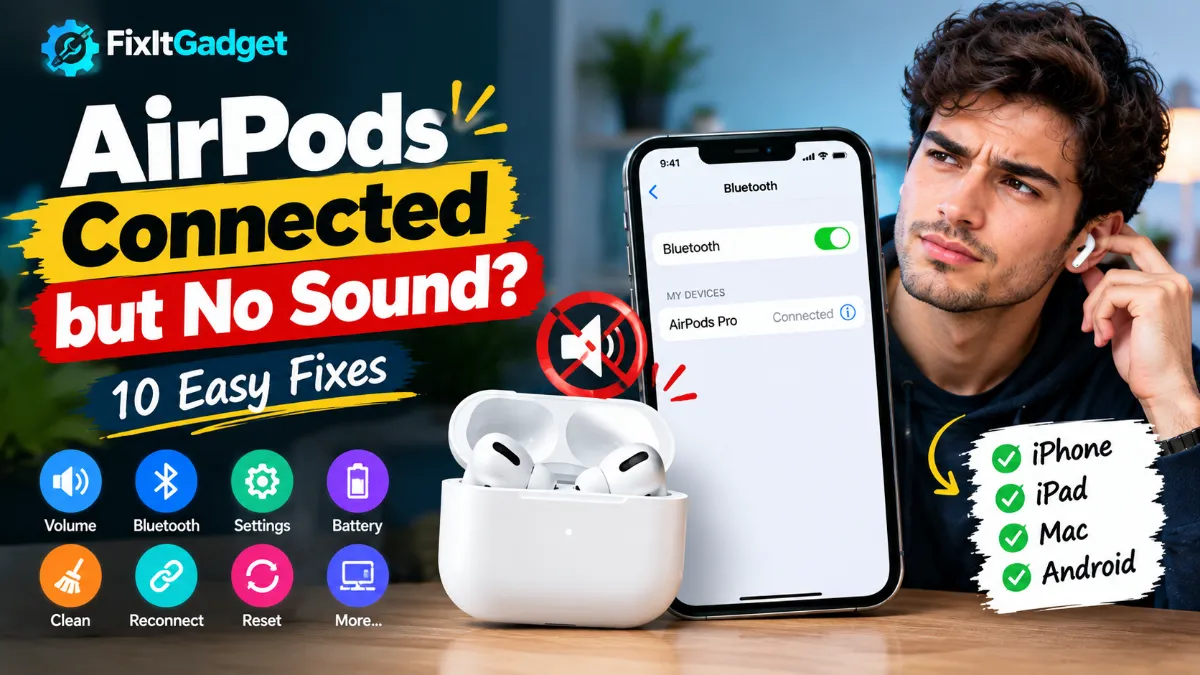
Seeing AirPods connected but no sound can be surprisingly frustrating. Your iPhone may show the AirPods as connected, the battery level may appear normally, and Bluetooth may look perfectly fine, yet you hear nothing when you play music, watch a video, or make a call.
The good news is that a connection does not necessarily mean audio is being routed correctly. The problem can come from the output device, volume level, Bluetooth connection, one AirPod not charging, audio balance, dirt blocking the speaker mesh, automatic ear detection, outdated software, or a temporary connection glitch.
This guide walks through 10 practical fixes for AirPods connected but no sound, starting with the quickest solutions and moving to resets and hardware checks.
These steps mainly apply to AirPods and AirPods Pro with an iPhone or iPad, but several also work with a Mac or Android phone.
AirPods Connected but No Sound? Try These Fixes First
Before going through every solution, try these quick checks:
- Turn up the media volume.
- Select your AirPods as the audio output.
- Pause and restart the audio.
- Put both AirPods back in the case and reconnect them.
- Turn Bluetooth off and back on.
- Restart your iPhone or iPad.
- Check the audio balance.
- Clean the AirPods speaker mesh.
- Forget and reconnect the AirPods.
- Reset the AirPods if nothing else works.
Apple also recommends checking volume, cleaning the AirPods, restarting the device, reconnecting the headphones, and resetting them when necessary.
Why Are My AirPods Connected but There Is No Sound?
There are several possible reasons your AirPods can show as connected while producing no audio.
The most common include:
- Your iPhone is sending audio to another device.
- The media volume is turned down.
- Bluetooth connected successfully but the audio connection is stuck.
- One or both AirPods are not actually charged.
- Audio balance is moved completely to one side.
- The speaker mesh is blocked by debris.
- Automatic Ear Detection is not behaving correctly.
- Your AirPods need to be reconnected.
- Your iPhone, iPad, Mac, or AirPods firmware needs an update.
- The AirPods may have a hardware problem.
The important thing is to troubleshoot the simple possibilities first. You usually do not need to reset your AirPods immediately.
Fix 1: Check the Audio Output
One of the easiest reasons for AirPods connected but no sound is that your iPhone is connected to the AirPods but is still sending audio somewhere else.
For example, your iPhone could be sending sound to:
- The iPhone speaker
- Another Bluetooth speaker
- Your car
- A TV
- A Mac
- Another AirPlay device
On iPhone or iPad
- Start playing a song or video.
- Open Control Center.
- Tap the audio output control in the media player.
- Look at the available playback devices.
- Select your AirPods.
You can also tap the AirPlay icon from supported apps and choose your AirPods.
Apple’s current AirPods guidance specifically recommends checking the AirPlay output and selecting the AirPods when troubleshooting connection and audio problems.
Why this works
Bluetooth connection and audio output are related but not exactly the same thing.
Your iPhone can recognize your AirPods as connected without actively using them as the current playback destination.
So before changing complicated settings, check the output device first.
Fix 2: Turn Up the Media Volume
This sounds obvious, but it is one of the fastest things to check.
Start playing a song or video, then press the Volume Up button several times.
Pay attention to the volume indicator while media is actually playing. You want to make sure you are increasing the media volume rather than adjusting another audio setting.
You can also open Control Center and move the volume slider upward.
Apple recommends checking the device volume when AirPods or other headphones produce no sound.
Also check the app itself
If the AirPods work in one app but not another, the problem may not be your AirPods.
Try another source, such as:
- Apple Music
- YouTube
- Podcasts
- Safari video
- A saved video
If sound works in other apps, you may be dealing with an app-specific audio issue.
Fix 3: Put the AirPods Back in the Case
If the output and volume are correct, reconnect the AirPods.
This is one of the simplest ways to clear a temporary Bluetooth or audio-routing problem.
Try this:
- Put both AirPods in the charging case.
- Close the lid.
- Wait about 15 to 30 seconds.
- Open the case.
- Put the AirPods back in your ears.
- Start playing audio again.
Also check whether both AirPods are charging.
Apple recommends putting both AirPods in the case and checking their charge status when troubleshooting an AirPod that isn’t producing sound.
Why this can help
The AirPods may have connected incorrectly after switching between devices.
Putting them back into the case forces the earbuds to stop their current connection and establish it again.
Fix 4: Turn Bluetooth Off and Back On
If your AirPods still show as connected but there is no sound, refresh the Bluetooth connection.
On your iPhone:
Settings > Bluetooth
Turn Bluetooth off, wait a few seconds, and turn it back on.
Then select your AirPods again.
After reconnecting, play some audio.
A better troubleshooting method
Instead of only checking whether Bluetooth says “Connected,” test actual audio.
Play a song and make sure the AirPods are selected as the playback device.
If the connection comes back but sound is still missing, move on to the next fix.
Fix 5: Restart Your iPhone or iPad
A temporary software problem can affect Bluetooth audio even when everything appears connected normally.
Restart your iPhone or iPad and then reconnect the AirPods.
Apple recommends updating and restarting the iPhone or iPad when troubleshooting headphone problems.
Why restarting can help
A restart can clear temporary problems involving:
- Bluetooth
- Audio routing
- Background processes
- App playback
- Wireless connections
If your AirPods suddenly stopped producing sound after working normally for hours or days, a restart is worth trying before you reset anything.
Fix 6: Check the Left and Right Audio Balance
If only one AirPod has no sound, the audio balance setting is worth checking.
On iPhone, go to:
Settings > Accessibility > Audio & Visual
Find the Balance control.
Make sure the slider is positioned in the middle.
If the balance is moved completely to the left or right, one AirPod can appear to work while the other seems silent.
Apple specifically recommends checking the Audio Balance setting when one AirPod is louder, quieter, or not producing sound.
If one AirPod is completely silent
Also check whether that AirPod is actually charging.
Put both earbuds into the case and check the battery status.
If one AirPod shows a very low battery or does not appear to be charging, clean the charging contacts and try again.
Fix 7: Clean the AirPods Speaker Mesh
If your AirPods are connected and the volume seems normal but the sound is extremely quiet or missing, check the speaker mesh.
Earwax, dust and other debris can build up around the speaker opening.
Apple recommends gently brushing the AirPods openings with a small, clean, dry, soft-bristled brush when debris is present.
How to clean them safely
- Remove the AirPods from your ears.
- Inspect the speaker mesh under good lighting.
- Use a clean, dry, soft-bristled brush.
- Gently remove visible debris.
- Avoid pushing dirt deeper into the mesh.
- Test the AirPods again.
Avoid
Do not pour liquid into the speaker openings or aggressively scrape the mesh with sharp objects.
If you use AirPods Pro, remove the ear tips when appropriate so you can inspect the speaker and microphone areas.
Why cleaning matters
A blocked speaker mesh can make an AirPod sound extremely quiet. This can sometimes feel like the AirPod has stopped working even though the Bluetooth connection is completely normal.
Fix 8: Check Automatic Ear Detection
AirPods can use automatic ear detection to determine whether they are being worn.
If the feature behaves incorrectly, audio can pause or fail to play through the earbuds as expected.
Try temporarily turning off Automatic Ear Detection and test the audio again.
On supported AirPods, you can find AirPods settings from:
Settings > Bluetooth > your AirPods
Then look for the automatic ear detection option.
Apple’s AirPods documentation explains that automatic ear detection can control when audio pauses and resumes.
Why test this?
If your AirPods think they have been removed from your ears, they may pause playback.
This is especially worth checking if:
- Music keeps pausing
- Audio starts and stops
- One AirPod works intermittently
- The AirPods work when held near your ear but stop after you put them on
If disabling automatic ear detection fixes the problem, you have identified the likely cause.
Fix 9: Forget and Reconnect Your AirPods
If your AirPods are still connected but producing no sound, create a fresh Bluetooth pairing.
On iPhone or iPad:
- Open Settings.
- Tap Bluetooth.
- Find your AirPods.
- Tap the information button next to them.
- Choose Forget This Device.
- Confirm.
- Put the AirPods in their charging case.
- Open the lid.
- Put the case near your iPhone.
- Follow the onscreen pairing instructions.
Apple recommends pairing the AirPods again when connection problems continue.
Important
Forgetting the AirPods is not the same as resetting them.
It simply removes the current Bluetooth pairing from your device so you can establish a new connection.
This is a useful step when:
- AirPods connect but do not play audio
- Audio keeps going to another device
- AirPods repeatedly disconnect
- One AirPod behaves differently from the other
Fix 10: Reset Your AirPods
If none of the previous solutions work, resetting your AirPods is the next major troubleshooting step.
A reset can help when the existing pairing or configuration has become corrupted or stuck.
The exact reset process varies by AirPods model.
For newer models such as AirPods 4 and AirPods Pro 3, Apple uses a different case interaction than it does for earlier models. For many earlier models, the setup button on the back of the case is used.
Because the procedure differs between generations, check Apple’s current instructions for your specific AirPods model before resetting them.
Apple’s official AirPods support page
After the reset:
- Put the AirPods in the case.
- Open the case near your iPhone.
- Put the AirPods into pairing mode.
- Follow the onscreen setup.
- Play audio to test them.
If sound returns after the reset, the issue was likely related to the previous pairing or configuration.
Bonus Fix: Update Your iPhone and AirPods
If your AirPods still have no sound, make sure your iPhone, iPad or Mac is running current software.
Go to:
Settings > General > Software Update
Install an available update if appropriate.
You should also make sure your AirPods firmware is current.
Apple says AirPods firmware updates happen automatically under the right conditions. The AirPods should be connected to an updated iPhone, iPad or Mac, the device should be connected to Wi-Fi, the AirPods should be in their charging case, the case should be connected to power, and the devices should remain within Bluetooth range for at least 30 minutes.
This is not normally something you manually install like an iPhone software update.
AirPods Connected but No Sound on Mac
If the problem happens with a Mac instead of an iPhone, the troubleshooting process is slightly different.
First, make sure your AirPods are selected as the Mac’s sound output.
Go to:
Apple menu > System Settings > Sound
Then check the output device.
Select your AirPods if they are not already selected.
Also check the volume level.
If necessary, disconnect the AirPods and reconnect them through:
System Settings > Bluetooth
Apple recommends keeping macOS updated and checking the Bluetooth connection when troubleshooting AirPods.
If your AirPods work on iPhone but not Mac
That is a useful clue.
It suggests that the AirPods themselves may be working correctly and the problem could be related to:
- Mac audio output
- Bluetooth pairing
- macOS
- Another connected audio device
Try removing and reconnecting the AirPods on the Mac.
AirPods Connected but No Sound on Android
AirPods can also be used with Android devices as Bluetooth headphones, although some Apple-specific features are not available in the same way as they are on Apple devices.
If your AirPods connect to Android but produce no sound, try the same basic troubleshooting steps:
- Increase media volume.
- Check the Bluetooth audio connection.
- Disconnect and reconnect the AirPods.
- Turn Bluetooth off and back on.
- Restart the Android phone.
- Forget the AirPods.
- Pair them again.
- Test another audio app.
Check the Bluetooth device settings
On many Android phones, tap the AirPods under:
Settings > Bluetooth / Connected devices
Make sure the option for Media audio is enabled if your phone provides separate Bluetooth audio controls.
If calls work but music does not, this setting is particularly worth checking.
AirPods Connected but No Sound on One Side
If only the left or right AirPod is silent, don’t immediately assume it is broken.
Try this order:
1. Check the battery
Make sure the silent AirPod is actually charging.
2. Clean it
Inspect the speaker mesh for debris.
3. Check balance
Go to:
Settings > Accessibility > Audio & Visual > Balance
Keep the slider centered.
4. Test it by itself
Put the working AirPod in the case.
Then place the problematic AirPod in your ear and play audio.
Apple recommends this type of test when diagnosing an AirPod that does not produce sound.
5. Reset the AirPods
If the AirPod still doesn’t work, reset and reconnect them.
AirPods Connected but Very Low Volume
No sound and very low sound are slightly different problems.
If you can hear something but the volume is unusually low, check:
- iPhone media volume
- Audio balance
- Speaker mesh
- Ear tip fit on AirPods Pro
- Headphone-related accessibility settings
- The volume inside the app
- Whether the same problem happens with another device
Apple also provides Headphone Accommodations on supported iPhones and headphones, which can adjust certain frequencies and soft sounds.
If only one AirPod is quiet, cleaning and checking the balance setting should be high on your list.
What If AirPods Are Connected but Nothing Works?
If you have tried all 10 fixes and there is still no sound, try one final test.
Connect your AirPods to another compatible device.
For example:
iPhone → another iPhone, iPad, Mac or compatible Bluetooth device
If the AirPods work normally on the second device, the original device is probably where you should focus your troubleshooting.
If they produce no sound on multiple devices, the AirPods themselves may have a hardware problem.
At that point, professional service may be appropriate. Apple provides troubleshooting, repair and replacement options for AirPods.
When Should You Get Your AirPods Repaired?
Consider service if:
- Neither AirPod produces sound on multiple devices
- One AirPod remains completely silent after a reset
- The AirPods have visible physical damage
- They were exposed to significant moisture
- One side repeatedly stops working
- The charging case cannot charge an AirPod
- The problem continues after software and pairing troubleshooting
Don’t keep resetting the AirPods repeatedly if the same hardware problem keeps returning.
Apple AirPods repair and service
Quick Troubleshooting Checklist
If you want the fastest possible solution, work through this list:
| Problem | What to Try |
|---|---|
| AirPods say connected but no sound | Check audio output |
| Volume is extremely low | Turn up media volume |
| Sound plays through iPhone | Select AirPods from AirPlay |
| Bluetooth looks connected but audio doesn’t work | Turn Bluetooth off and back on |
| One AirPod is silent | Check battery and balance |
| One side is very quiet | Clean speaker mesh |
| Audio keeps pausing | Check Automatic Ear Detection |
| AirPods suddenly stopped working | Restart iPhone |
| Connection keeps acting strangely | Forget and reconnect AirPods |
| Nothing else works | Reset AirPods |
| Still no sound on multiple devices | Consider service |
Frequently Asked Questions
Why are my AirPods connected but there is no sound?
The most common causes are incorrect audio output, low media volume, a temporary Bluetooth problem, a charging issue, blocked speaker mesh, incorrect audio balance or a pairing problem. Start by checking the audio output and volume before resetting the AirPods.
Why do my AirPods say connected but sound comes from my iPhone?
Your iPhone may still have another audio output selected. Start playing media, open the audio output controls, and select your AirPods.
Why is only one AirPod working?
Check whether the silent AirPod is charged and making contact with the charging case. Then check the Audio Balance setting and clean the speaker mesh. Apple recommends these checks when one AirPod does not play audio.
Why are my AirPods connected but the volume is very low?
Check the media volume first. If only one side is quiet, inspect the speaker mesh for debris and make sure the audio balance is centered.
Will forgetting my AirPods delete anything?
Forgetting the AirPods removes the current Bluetooth pairing from the device. You can pair them again afterward.
Should I reset my AirPods if they have no sound?
Resetting can help if simpler solutions such as checking the output, restarting the device and reconnecting the AirPods do not work. Because the reset procedure varies by AirPods model, follow Apple’s instructions for your specific model.
Can AirPods work with Android?
Yes. AirPods can be used as Bluetooth headphones with compatible non-Apple devices, although Apple-specific features and settings may not be available in the same way.
Why do my AirPods work on one device but not another?
That usually points toward an issue with the device that has no sound, such as its audio output, Bluetooth pairing or software. Test the AirPods on another device to narrow down the cause.
Do AirPods need firmware updates?
AirPods receive firmware updates automatically when the required conditions are met. Apple recommends keeping the connected Apple device updated, connecting it to Wi-Fi, keeping the AirPods in their charging case with the case connected to power, and leaving them within Bluetooth range for at least 30 minutes.
Final Thoughts
When your AirPods are connected but there is no sound, don’t assume they are broken.
In many cases, the solution is surprisingly simple. The audio output may be pointed at another device, the media volume may be too low, one AirPod may not be charging, or the Bluetooth connection may simply need to be refreshed.
Start with the easy fixes:
Check the output → check volume → reconnect the AirPods → restart your device → check balance → clean the earbuds.
If that doesn’t work, forget and reconnect the AirPods, update your devices, and finally reset the AirPods.
If the same problem continues across multiple devices after a reset, hardware service becomes much more likely.
For more practical troubleshooting guides, you can also explore Bluetooth troubleshooting for Android and other device-fixing guides on FixItGadget.
The key is to work through the fixes in order rather than immediately resetting everything. In most cases, you can identify the problem without replacing your AirPods.