
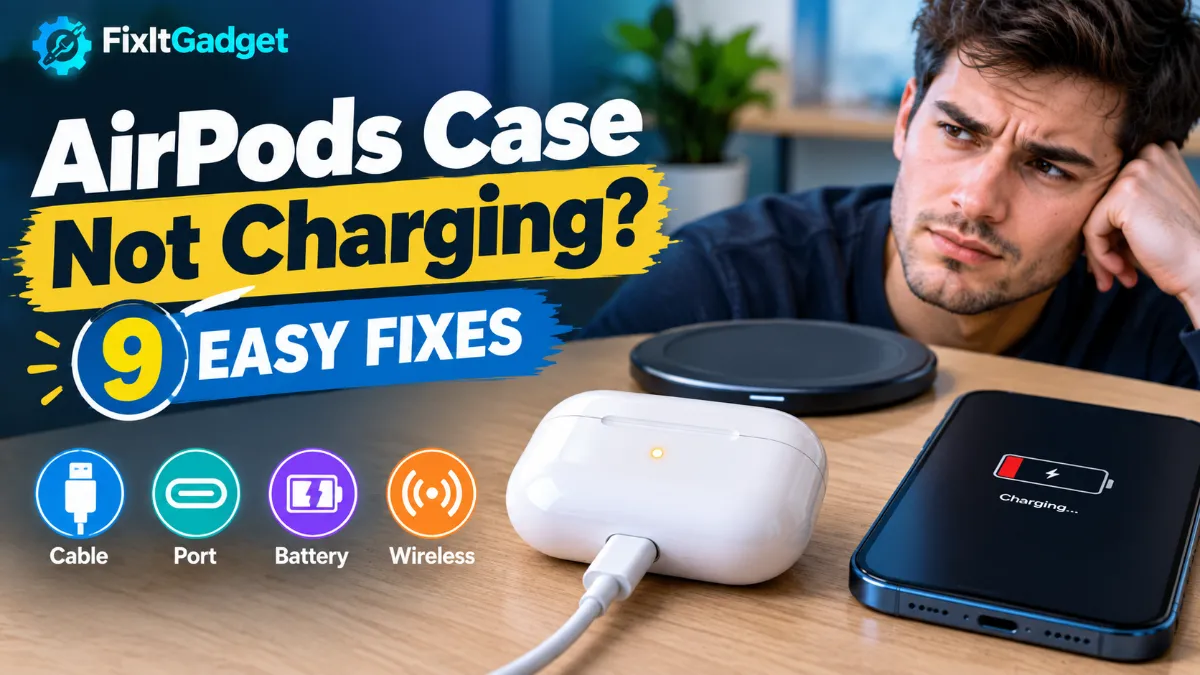
If your AirPods case is not charging, the problem may be as simple as a bad cable, a dirty charging port, an incorrectly positioned wireless charger, or a power adapter that is not working properly. In some cases, the charging case may also need to be reset or may have a worn-out battery.
The good news is that you can check most of these problems yourself before considering a repair or replacement.
Whether your AirPods case shows no light, stays at the same battery percentage, charges very slowly, or works with neither a cable nor a wireless charger, try the fixes below in order.
Quick Answer: Why Is My AirPods Case Not Charging?
The most common reasons an AirPods case is not charging include:
- A damaged or faulty charging cable
- A problem with the power adapter or outlet
- Dust or debris inside the charging port
- The wireless charger not being aligned correctly
- A charging case that is completely drained
- A software or connection glitch
- An aging or damaged case battery
- Physical damage to the charging port or case
Start by connecting the case to a reliable power source with a compatible cable and leave it charging for at least 15 minutes. If you use wireless charging, reposition the case with the status light facing upward and centered on the charger.
If that does not help, work through the nine fixes below.
1. Charge the AirPods Case for at Least 15 Minutes
If the battery in your charging case is completely drained, it may not immediately appear to be charging.
Connect the case to power and leave it alone for at least 15 minutes before checking it again. Avoid repeatedly disconnecting and reconnecting it every few seconds.
For a wired connection:
- Put your AirPods in the case if they are outside.
- Close the lid.
- Connect the correct Lightning or USB-C cable to the case.
- Connect the other end to a working power adapter or USB port.
- Leave the case connected for at least 15 minutes.
- Check the status light or battery percentage afterward.
Apple recommends charging AirPods and their case for at least 15 minutes when they won’t charge.
If the case was completely empty, give it more time. A deeply drained battery may need longer before the percentage changes noticeably.
What if there is no charging light?
Don’t immediately assume the case is dead.
The status light location depends on the AirPods model. On many newer AirPods cases, the light is on the front, while some older cases have the light inside the case.
If there is no light, keep the case connected to power and check its battery level from a paired iPhone, iPad, or Mac if possible.
2. Try a Different Charging Cable
A faulty charging cable is one of the easiest things to overlook.
Your AirPods case may be perfectly fine while the cable has an internal problem, damaged connector, or loose connection.
Try another compatible cable that you know works with another device.
For example, if your case uses USB-C, try a different USB-C cable. If your model uses Lightning, try another compatible Lightning cable.
When testing:
- Push the connector firmly into the charging port.
- Check whether the connector feels unusually loose.
- Try another known-working cable.
- Avoid visibly damaged or frayed cables.
- Check both ends of the cable.
If the case starts charging with the second cable, you have probably found the problem.
This is also a useful test because it helps separate a cable problem from a charging-case problem.
3. Check the Power Adapter and Wall Outlet
If changing the cable does not help, check the other end of the charging setup.
The wall adapter, USB port, power strip, or outlet could be responsible.
Try connecting the AirPods case to:
- A different wall outlet
- A different USB power adapter
- A computer’s USB port
- Another known-working charging setup
Apple recommends making sure the charging cable is firmly connected to both the charging case and the power adapter, and that the adapter is connected to a working power source.
If the case charges from one power source but not another, the AirPods case may not be the actual problem.
A simple test
Use the same adapter and cable to charge another compatible device.
If that device also refuses to charge, troubleshoot the charger or outlet first.
If the other device charges normally but your AirPods case does not, continue with the next fixes.
Read More : AirPods Connected but No Sound | 10 Easy Fixes That Work in 2026
4. Clean the AirPods Charging Port
Dust and debris can build up inside the charging port, especially if you regularly carry your AirPods in a pocket, bag, or backpack.
Even a small amount of debris can interfere with the connector.
Turn off or disconnect the charging setup and inspect the port under good lighting.
Look for:
- Dust
- Pocket lint
- Dirt
- Small pieces of debris
- Anything preventing the connector from sitting properly
Clean the area carefully.
Do not force a sharp metal object deep into the charging port. You could damage the contacts or other internal components.
If the connector does not fit normally, feels loose, or repeatedly disconnects, stop forcing it and consider professional service.
Cleaning the charging port is one of Apple’s recommended troubleshooting steps when AirPods won’t charge.
5. If You’re Using Wireless Charging, Reposition the Case
Wireless charging introduces another possible problem: alignment.
A compatible AirPods charging case needs to be positioned correctly on the wireless charger. If it is slightly off-center, charging may not start correctly.
Try this:
- Connect the wireless charger to power.
- Place the AirPods case on the center of the charging surface.
- Keep the lid closed.
- Position the case with the status light facing upward.
- Wait several seconds.
- Check whether the status light responds or the battery percentage changes.
If the case does not charge, move it slightly and try again.
Apple notes that compatible AirPods charging cases can use supported wireless chargers, including Qi-certified chargers and compatible MagSafe chargers depending on the model.
Some AirPods models also support charging with an Apple Watch charger.
However, compatibility depends on the exact AirPods model and charging case.
Wireless charging works differently from cable charging
If wireless charging fails but the case charges normally through a cable, the case battery itself may be fine.
In that situation, the problem may involve:
- Charger alignment
- Wireless charger compatibility
- The wireless charger
- A power adapter connected to the wireless charger
- Something between the case and charging surface
Try wired charging before assuming the case needs repair.
6. Remove Any Case or Accessory Around the AirPods Charging Case
If you use a protective cover around your AirPods charging case, temporarily remove it.
This is especially important when using wireless charging.
A thick or poorly designed protective case can prevent the charging case from sitting correctly on a wireless charger.
Remove the cover and place the original AirPods charging case directly on the charger.
Then check whether charging starts.
You should also remove anything else that may interfere with the charging surface.
If wireless charging works without the protective cover, the accessory is probably preventing proper alignment.
7. Check the AirPods Case Battery Level
Sometimes the case is charging, but the battery percentage does not appear to change immediately.
Check the battery level from your Apple device.
On an iPhone or iPad, you can open the AirPods case near the device or check the AirPods information through Bluetooth settings.
You can also check AirPods battery information on a Mac.
The charging case’s status light provides another clue.
Generally:
- Green means the case or AirPods are fully charged depending on what is inside the case.
- Amber means less than one full charge remains.
- No light may mean the case needs charging.
Keep in mind that the exact status-light behavior depends on the AirPods model.
If the case shows a percentage such as 20%, then remains connected to power for a reasonable amount of time without increasing, try another cable, charger, and outlet before moving on.
This helps determine whether the issue is with the power source or the case itself.
8. Reset Your AirPods
If the charging hardware appears to be working but the case still refuses to charge correctly, resetting the AirPods is worth trying.
Apple includes resetting as a troubleshooting step for AirPods that won’t charge.
For many AirPods models, the process involves putting the AirPods in the case, closing the lid, waiting, opening the lid, and holding the setup button until the status light changes from amber to white.
A typical reset process for AirPods 1, AirPods 2, AirPods 3, AirPods Pro 1 and AirPods Pro 2 is:
- Put both AirPods in the charging case.
- Close the lid.
- Wait about 30 seconds.
- Open the lid.
- On your iPhone or iPad, go to Settings > Bluetooth.
- If your AirPods appear, select them and choose Forget This Device.
- With the lid open, press and hold the setup button on the back of the case for about 15 seconds.
- Wait for the status light to flash amber and then white.
- Reconnect the AirPods to your device.
The reset procedure is different for some newer models, including AirPods 4 and AirPods Pro 3.
If you have one of those models, follow Apple’s model-specific reset instructions rather than using the older button procedure.
Resetting can remove custom AirPods settings, so you may need to configure them again afterward.
9. Check for Battery or Hardware Damage
If none of the previous solutions work, the problem may be physical rather than something you can fix through settings.
An AirPods charging case contains a rechargeable battery and charging hardware. Like other rechargeable batteries, its capacity can decrease over time.
Hardware problems are more likely if:
- The case does not charge with multiple known-working cables
- Multiple power adapters and outlets have been tested
- Wireless charging also fails when supported
- The charging port appears damaged
- The connector does not fit properly
- The case was recently dropped
- The case has been exposed to liquid
- The battery percentage stays unchanged for a long time
- The status light never responds to charging
- The case becomes unusually hot while charging
If your AirPods case has physical damage or still won’t charge after the basic troubleshooting steps, professional service may be the better option.
Avoid opening the charging case yourself. The internal battery and electronics are not designed for casual user repair.
AirPods Case Not Charging With Cable but Wireless Charging Works
If the case charges wirelessly but not with a cable, focus on the wired charging path.
Try these steps:
- Use another compatible charging cable.
- Try another power adapter.
- Try another wall outlet.
- Inspect and clean the charging port.
- Check whether the connector sits firmly in the port.
- Test the case with another known-working charging setup.
If wireless charging continues to work normally, the case battery may still be functional.
The issue could be isolated to the cable, adapter, or charging port.
AirPods Case Not Charging Wirelessly but Cable Works
This situation points in the opposite direction.
If the case charges normally through USB-C or Lightning but does not charge wirelessly, try:
- Reconnecting the wireless charger to power
- Centering the case on the charging pad
- Keeping the status light facing upward
- Removing the protective case
- Trying another compatible wireless charger
- Trying another power adapter with the wireless charger
If wired charging works consistently, you can continue using a cable while troubleshooting the wireless charging setup.
AirPods Case Stuck at 0% or 1%
A case that remains at 0% or 1% can be especially confusing.
First, connect it to a reliable wired charger and leave it for at least 15 minutes.
Then check the percentage again.
If it remains at the same percentage:
- Try another cable.
- Try another adapter.
- Try another outlet.
- Clean the charging port.
- Check whether the case shows a status light.
- Reset the AirPods.
- Test wireless charging if your case supports it.
If the percentage never increases after testing multiple charging methods, the battery or charging hardware may be failing.
AirPods Case Shows a Light but Isn’t Charging
A status light does not necessarily mean the battery is actually increasing.
The light mainly provides information about the charging state. The best way to confirm whether the case is gaining charge is to check its battery percentage.
For example, if the case shows an amber light but remains at the same percentage after a long period connected to power, try another cable and power source.
If you use wireless charging, reposition the case and make sure the charger itself is connected to power.
Should You Charge the AirPods Case With the AirPods Inside?
Yes.
You can charge the charging case with the AirPods inside or removed.
If the AirPods are inside the case, the case can charge both its own battery and the earbuds as needed.
For troubleshooting, however, it can sometimes be useful to test the case by itself.
Remove the AirPods, connect the empty case to power, and check whether the case shows a charging response.
This can help you determine whether the problem is related specifically to the case.
What the AirPods Charging Light Means
The status light is useful when troubleshooting, but its location and behavior vary between AirPods models.
In general:
Green: The battery has reached a full-charge state.
Amber: Less than one full charge remains.
No light: The case may need charging.
On some newer AirPods models, you may also see different amber-light behavior depending on the battery level and charging state.
Don’t rely on the light alone. Check the battery percentage on your iPhone, iPad, or Mac when possible.
When Should You Stop Troubleshooting?
You should consider professional service when the case still refuses to charge after you have tested multiple known-working charging setups.
For example, if you have already tried:
- A different cable
- A different adapter
- A different outlet
- Cleaning the charging port
- Wireless charging
- Removing the protective case
- Resetting the AirPods
and the battery percentage still does not increase, continuing to repeat the same steps is unlikely to help.
Physical damage is another reason to stop troubleshooting at home.
A damaged charging port, swollen battery, liquid damage, or excessive heat while charging should be handled professionally.
How to Prevent AirPods Charging Problems
A few simple habits can reduce charging problems over time.
Keep the charging port clean
Pocket lint and dust can accumulate around the bottom of the case. Check the port occasionally and clean it carefully when necessary.
Use good-quality charging accessories
Avoid continuing to use cables that are damaged, loose, or unreliable.
Don’t force the connector
If the charging connector does not fit normally, investigate the port instead of pushing harder.
Keep the case dry
Avoid charging the case when it is wet or has recently been exposed to moisture.
Don’t ignore unusual heat
If the case becomes unusually hot during charging, disconnect it and allow it to cool. If the problem continues, seek professional help.
Read More : How to Connect AirPods to Android | Complete Step-by-Step Guide
Check the battery level occasionally
Knowing how your case normally behaves makes it easier to notice when something changes.
AirPods Case Not Charging? Try These Fixes in Order
If you want the shortest troubleshooting path, follow this order:
- Charge the case for at least 15 minutes.
- Try another charging cable.
- Try another power adapter and outlet.
- Clean the charging port carefully.
- Reposition the case if using wireless charging.
- Remove the protective case or accessory.
- Check the battery percentage on your iPhone, iPad, or Mac.
- Reset the AirPods.
- Consider professional service if nothing changes.
This order starts with the simplest and safest solutions before moving toward resets and possible hardware problems.
Final Thoughts
When your AirPods case is not charging, don’t assume that the battery has failed immediately.
A faulty cable, bad power adapter, dirty charging port, wireless charging alignment problem, or protective case can all make it look like the charging case is broken.
Start with a reliable wired connection and give the case enough time to charge. Then test another cable, adapter, and outlet. If you use wireless charging, make sure the case is correctly positioned and remove any protective cover that could interfere with charging.
If basic charging tests don’t work, clean the port and reset the AirPods. When the case still refuses to charge after multiple known-working charging methods, especially if there is physical damage or unusual heat, professional service is the safer next step.
The important thing is to troubleshoot the charging setup one part at a time. That makes it much easier to identify whether the problem is the cable, charger, port, wireless charger, software, or the AirPods case itself.
Frequently Asked Questions
Why is my AirPods case not charging?
The most common causes are a faulty cable, power adapter problem, dirty charging port, wireless charging alignment issue, drained battery, software glitch, or hardware failure.
How long should I charge an AirPods case that won’t turn on?
Connect it to a reliable power source and leave it charging for at least 15 minutes before checking again. If the battery was completely drained, it may need longer.
Why is my AirPods case stuck at 0%?
Try another cable, power adapter, and outlet. Clean the charging port and test wireless charging if supported. If the percentage remains at 0% after multiple charging methods, the battery or charging hardware may have a problem.
Can I charge my AirPods case without the AirPods inside?
Yes. The charging case can be charged with or without the AirPods inside.
Why is my AirPods case not charging wirelessly?
The case may not be centered correctly on the wireless charger, the charger may not be compatible, or the protective case may interfere with alignment. Reposition the case, remove the protective cover, and test another compatible charger if available.
Why does my AirPods case show a light but not charge?
The status light indicates the case’s charging or battery state, but it does not by itself confirm that the battery percentage is increasing. Check the battery level on your connected Apple device after leaving the case connected to power.
Should I reset my AirPods if the case won’t charge?
Yes, resetting can be worth trying after checking the cable, power source, charging port, and wireless charger. Apple includes resetting among its troubleshooting steps for AirPods that won’t charge.
How do I know if my AirPods case battery is bad?
If the case does not gain charge after testing several known-working cables, adapters, outlets, and compatible wireless chargers, the battery or charging hardware may be failing. Physical damage or unusual heat is another reason to seek professional service.
Can a dirty charging port stop an AirPods case from charging?
Yes. Debris inside the charging port can interfere with the connection between the charging cable and the case. Inspect and clean the port carefully.
When should I replace my AirPods charging case?
Consider service or replacement when the case consistently fails to charge after basic troubleshooting, especially if the charging port or case has physical damage or the battery no longer holds or accepts a charge.
Read More : One AirPod Not Charging? 10 Ways to Fix It